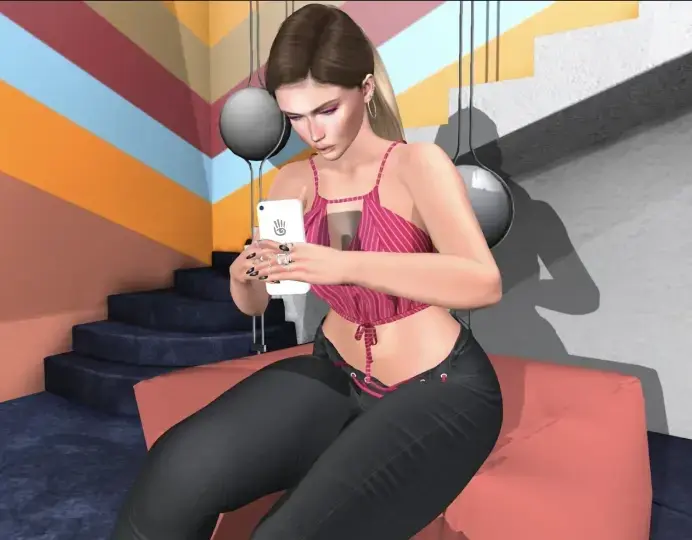
Your place.
Are you ready to choose a place that's just for you?
A place that's a blank canvas for your ideas, creativity and friends?
There are many ways to get started with land, so choose which ones are right for you.
Get a Linden Home
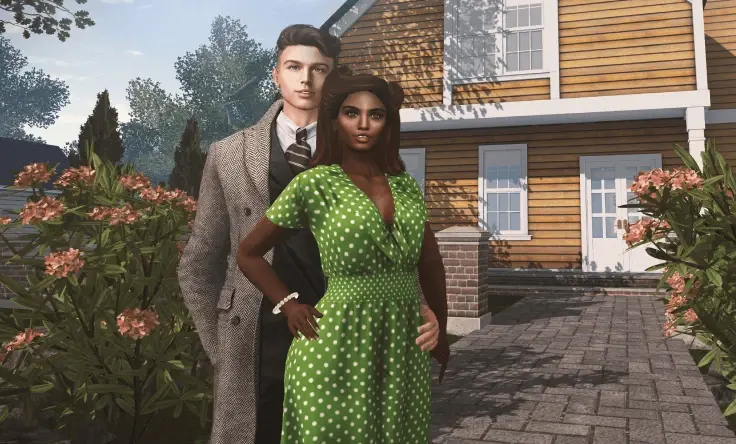
- House and land, ready to furnish
- 30+ styles to choose from
- Keep your home private or open it to visitors
- Enjoy a neighborhood of other homeowners
- Requires paid membership
Rent a parcel
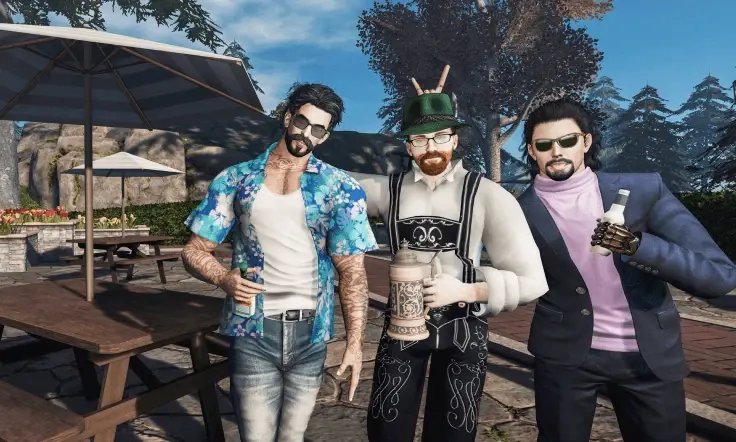
- No commitment, cancel anytime
- Great for parties and short-term events
- Rent from other residents with Linden Dollars
- Premium membership not required
Buy a parcel
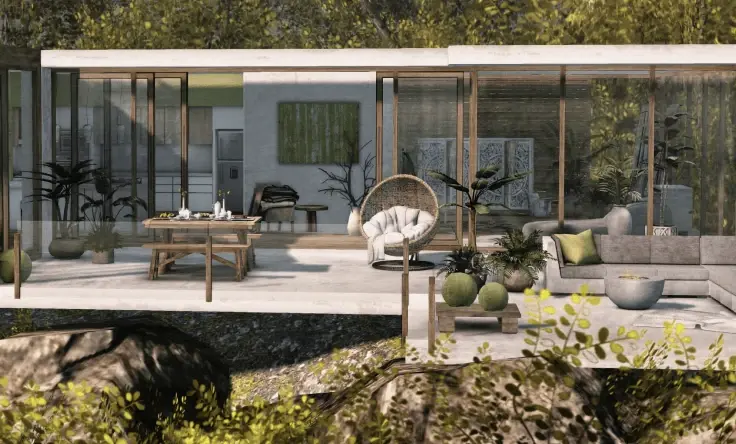
- A wide range of sizes and geography
- More control than renting
- Resellable when you're ready to upgrade
- Multiple ways to buy
- Premium membership not required
Buy a Region
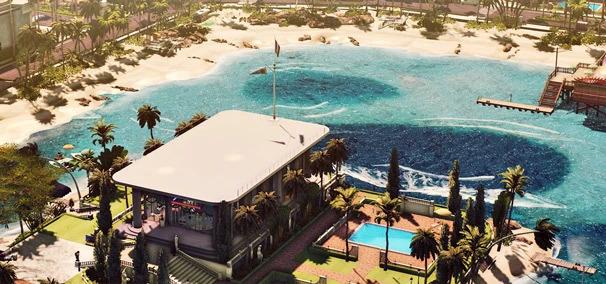
A full island all your own. For the ultimate in land ownership, a full private region, homestead, or event region is the way to go. Start here to create the build of your dreams.
Spotlight: How I use my land
We rented the perfect spot to host a big party with 30 of my closest friends.
Explore rentingOur Linden Home has become our private sanctuary.
Explore Linden HomesI bought my own parcel to showcase and sell my creations.
Explore buying landCommonly asked questions about land
How can there be land in Second Life?
The world of Second Life consists of nearly a half million acres of virtual land, and almost all of it belongs to other users, or Residents. As more new users join Second Life, we keep adding more and more virtual land - so the world actually gets bigger every day. Think of it this way: the world of Second Life is like a 3D website, where you can explore and interact with everyone else who is using it at the same time. Virtual land is like a 3D web site: a blank space where you can make anything happen.
Why would I want to have land?
When you buy land in Second Life, it gives you a space that you can customize however you want, and a canvas where your creations can come to life. Land in Second Life is a place to call home, where you can invite friends to hang out, hold events, and more. Many of the virtual items you purchase in Second Life - like clothes, accessories and cars - can be used anywhere, anytime. But if you purchase a house, a garden, or an entire forest, you're going to need somewhere to put them: your own plot of land!
Do I have to have land?
No. You can enjoy a lot of what Second Life has to offer without land - exploring the world, meeting people, joining groups and attending events. But having land of your own gives you a ton of additional opportunities, and can make your Second Life experience even more compelling and rewarding by offering you another way to express your creativity.
Why do I have to pay for land?
Getting virtual land in Second Life is a lot like getting a personal website: you can put whatever you want on it, but your site still needs storage space on a computer that is turned on and available on the Internet, 24/7. When you have land in Second Life, you're actually renting storage/server space at Linden Lab. Each piece of land takes up a certain amount of dedicated storage space - the more land, the more space. So, it's like renting a hard drive.
How do I find land that I can buy?
There are many ways to find land in Second Life. The easiest place to get land is to choose a Linden Home, which comes on its own parcel ready to go. If you're logged in using the Second Life Viewer, you can go into the Search menu, and click on the Land tab. This will give you a sortable price list of different areas of land. Or on the web, you can use Search to find land buy, rent, or bid on in land auctions.
How do I buy land?
To buy land in Second Life, the first thing you'll need to do is set up an account. Then, once you've found the piece of land you want to buy, you can visit it and have a look around. If you like what you see, another click lets you buy it. In order to have land, you'll need to pay an initial fee to acquire it and get it set up, and then an ongoing fee for service and maintenance. You'll find more detailed steps at the Knowledge Base.
Are there different kinds of land?
Yes, you have a few different options, depending on what you're looking to do. Premium and Premium Plus members get land for free when they choose their Linden Home. There is land available on the Mainland of Second Life, where you'll get the community experience - all land on the Mainland is interconnected, like one big continent. This means that on the mainland, you'll have neighbors living alongside you, people walking outside and generally more socializing. There are also a variety of Private Region options if you'd like your own secluded land for more privacy, control and performance.
Okay, I have land. Now what?
Once you have land, begin shopping around for a prefab home, shop or office. Or learn how to build your own home, and begin constructing your virtual masterpiece. For more information on buying things for your land, go here. For more information on building, go here. And congratulations: we can't wait to see what you're going to do with your new space!